Quick Actions Command Palette
What It Is
The Command Palette is a keyboard-driven launcher that gives you instant access to every feature in Perfect Week. Press Cmd+K (Mac) or Ctrl+K (Windows), type what you need, and go. Navigate, create, search, launch AI Playbooks, and mark habits done without touching the sidebar.
Why It Matters
Clicking through menus and screens slows you down. Especially when you know exactly what you want to do: create a task, find a project, or launch your morning Top 3. The Command Palette cuts the path from thought to action down to a few keystrokes. Everything is searchable, context-aware, and remembers what you used last.
Getting Started
Open the Command Palette from anywhere in the app:
- Keyboard: Press Cmd+K (Mac) or Ctrl+K (Windows/Linux) from any screen.
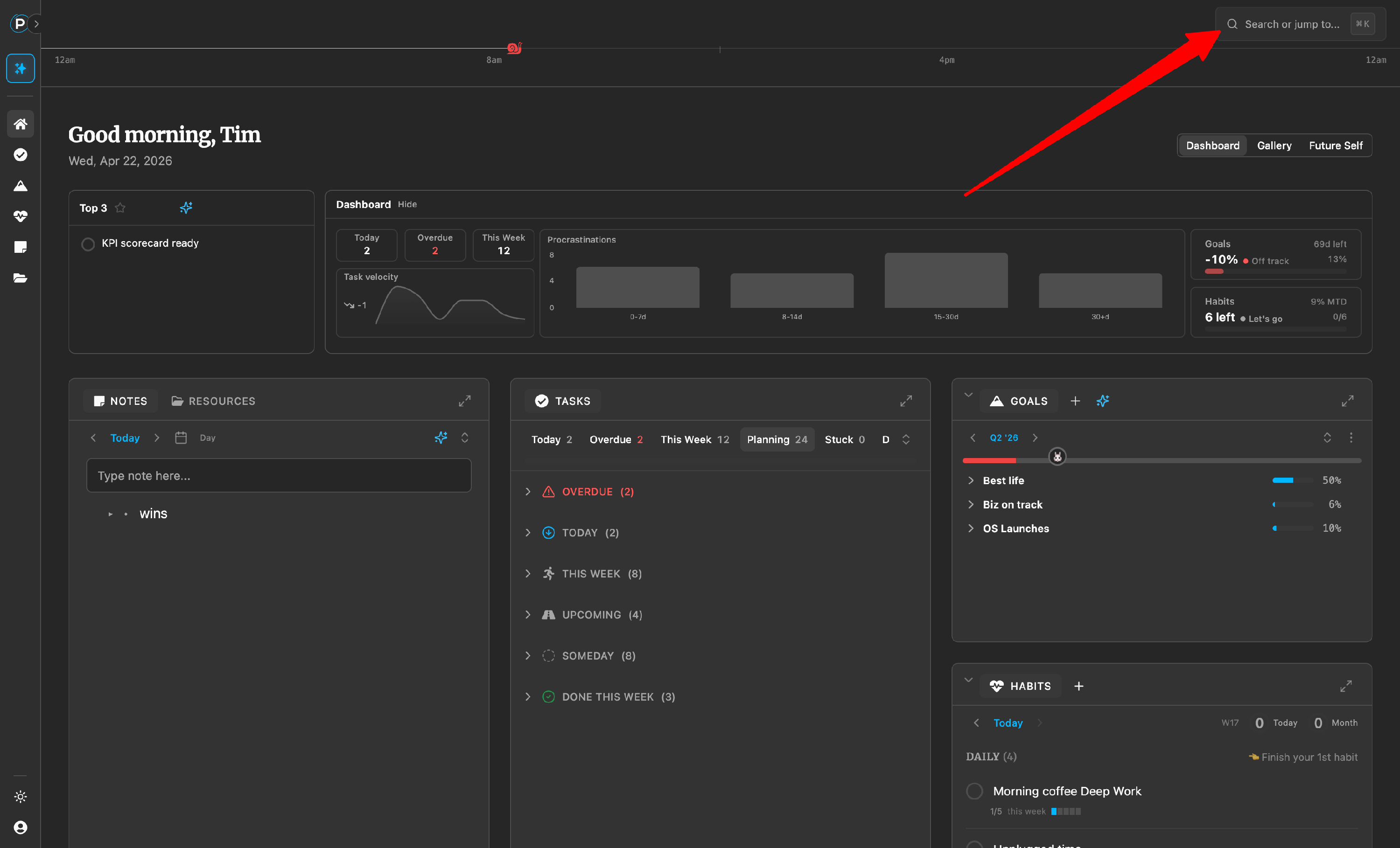
- Header button: Click the "Search or jump to..." bar at the top of the page.
Start typing to filter commands instantly. Press Enter to run the highlighted command, or click it directly. The palette closes automatically after every action.
Key Concepts
- Fuzzy search: You don't need to type the exact command name. Type "groom" to find "Groom My Tasks," or "stuck" to find "Get Me Unstuck." Aliases and partial matches all work.
- Context-aware ranking: Commands related to the page you're on appear higher. On the Tasks page, task commands rise to the top. On Goals, goal commands do.
- Recent commands: Your last 5 commands appear at the top when you first open the palette, so your most-used actions are always one keystroke away.
- Sub-modes: Some commands (like "Find Task..." or "Mark Habit Done...") open a focused search within the palette. Type to filter your actual tasks, goals, projects, or habits, then select one to take action.
What You Can Do
Navigate Anywhere
- Go to Home, Go to Tasks, Go to Goals, Go to Habits, Go to Bullet Journal, Go to Resources, Go to Settings: Jump to any page instantly.
- Go to My Future Self: Open the Future Self Grid directly.
- Toggle Dark Mode: Switch between light and dark themes.
Create New Items
- Create Task: Opens the task form ready to fill in.
- Create Goal: Start a new goal with the goal form.
- Create Project: Start a new project under any goal.
- Create Entry: Open the Bullet Journal with a blank entry.
- Create Resource: Save a new quick link or resource.
Find and Open Items
Each "Find..." command opens a sub-mode that searches your actual data:
- Find Task...: Search your open tasks by name, then jump to the one you pick.
- Find Goal...: Search all goals and open the one you select.
- Find Project...: Search projects and jump to the detail view.
- Find Entry...: Search Bullet Journal entries.
- Find Resource...: Search your saved resources and quick links.
In any sub-mode, press Backspace with an empty search to go back to the main palette.
Mark Habits Done
- Mark Habit Done...: Opens a list of today's habits. Select one to toggle its completion. Already-completed habits show a "Done" badge so you can see your progress at a glance.
Launch AI Playbooks
Every AI Playbook is accessible from the Command Palette. Type "AI" to see them all, or search by name:
| Playbook | What It Does |
|---|---|
| Pick My Top 3 | Surfaces your real priorities for the day based on goals, deadlines, and what you've been avoiding. |
| Groom My Tasks | Scans every project and goal, then reschedules and cleans up your task backlog in seconds. |
| Daily Brief | Morning review of today's goals, tasks, and risks so you start the day focused. |
| Plan My Quarter | Goal-setting coach that reads your vision and helps you define 2 focused goals with projects and outcomes. |
| Get Me Unstuck | Identifies what's blocking you across all projects and maps out concrete next steps. |
| Project Help | Pick a project, then get AI focused on that project's outcomes, tasks, and progress. |
| Daily Log | End-of-day reflection on what you accomplished and what you learned. |
| Plan Tomorrow | Plans your next day using today's journal entries and open tasks. |
| Thought Partner | Brainstorming partner that uses your journal as context. |
| Future Self Grid | Guided walkthrough to build or refine your 8-area identity grid. |
| Weekly Review | Week summary with patterns, wins, and recommended actions for next week. |
| Deep Research | Type a topic and AI researches it for you, returning structured findings. |
| Clean Up Resources | Organizes your resource library by removing duplicates, fixing tags, and flagging orphans. |
| Resource Review | Audits your saved resources and suggests consolidation and better organization. |
Tips
- Build muscle memory. Cmd+K, type 2-3 letters, hit Enter. Once you get the rhythm, you'll never go back to clicking through the sidebar.
- Use it for AI Playbooks. Instead of navigating to a page and finding the sparkle button, just Cmd+K and type the playbook name. "top 3", "groom", "unstuck" all work.
- Check your habits fast. Cmd+K, type "habit", select "Mark Habit Done...", pick the habit. Done in under 3 seconds.
- Recent commands save time. Open the palette and your most-used commands are already at the top. No typing needed for your daily routine.
- Search by what you mean, not the exact name. "todo" finds Create Task. "journal" finds Bullet Journal. "brainstorm" finds Thought Partner. The palette understands synonyms.
- Open AI Sidekick. Cmd+K then type "ai" or "sidekick." Or use the direct shortcut: Cmd+I.
Related Features
- AI Sidekick Overview: The AI engine behind every Playbook command in the palette.
- Tasks Overview: How tasks work, including the task form the palette opens.
- Goals and Projects Overview: The goal and project system searchable from the palette.
- Habits Overview: How habits work, including the completion toggle available in the palette.
- Resources Overview: The resource library searchable from the palette.