Tasks Overview
What It Is
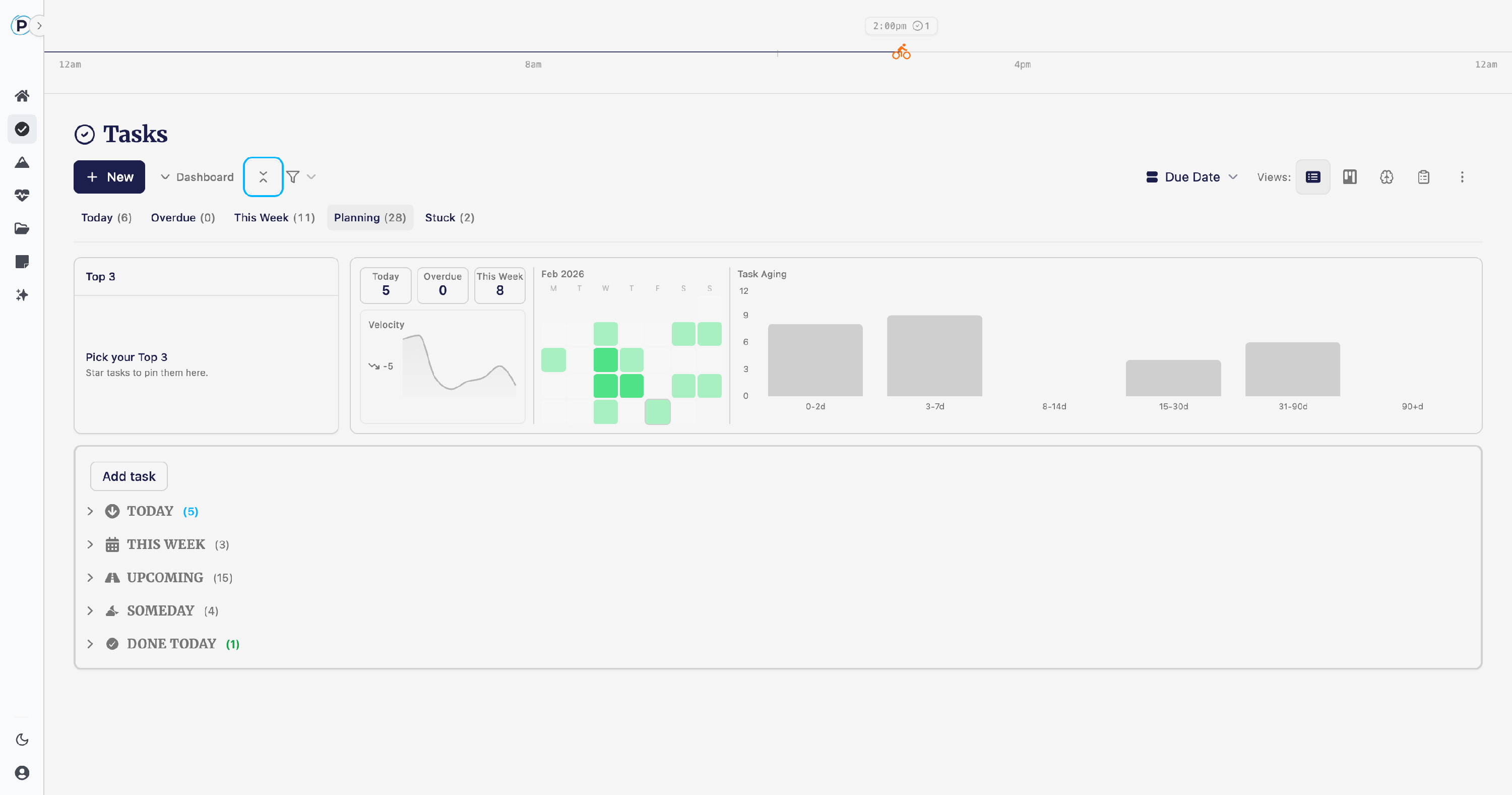
Tasks is your daily execution engine — the place where goals become action items, work gets scheduled, and progress gets tracked across list, kanban, and focus views.
Why It Matters
Plans without execution are just wishes. Tasks connects your daily work to your quarterly goals through projects and outcomes, gives you clear filters to see what needs attention right now, and keeps your backlog honest with aging indicators that surface procrastination before it becomes a problem.
Key Concepts
- Filters — Quickly scope your view: Today, Overdue, This Week, Planning (all active), and Stuck. Additional filters available for Delegated, Recurring, Completed, and Archived tasks.
- Top 3 — Pin up to 3 tasks each day as your non-negotiable focus. Top 3 tasks stay pinned at the top of every view and reset daily.
- Views — Switch between List (grouped and sortable), Kanban (drag-and-drop columns), and Focus Mode (one task at a time with a Pomodoro timer).
- Grouping — In list view, group tasks by Due Date, Project, Goal, Priority, Effort, or Age.
- Task Aging — Every open task shows its age. After 7 days, tasks get labeled (Waiting → Neglected → Procrastinating) and older tasks grow cobwebs on their cards.
- Stuck (Roadblocked) — Mark a task as stuck when it's blocked or waiting on someone else. Stuck tasks clear their due date and move to a separate group so they don't pollute your active lists.
What You Can Do
Create Tasks
- Click "+ New" to open the task form with title, project, due date, priority, effort, and notes.
- Quick add from the inline input field at the top of the task list.
- Create from outcomes — in Goals & Projects, click the task icon next to any outcome to generate a linked task.
- Recurring tasks — set a recurrence schedule (daily, weekly, monthly) to auto-generate task instances.
Manage & Organize
- Edit inline — click any task to expand it and edit title, notes, checklist, and details.
- Set priority — High, Medium, Low, or None. Group by priority to see what matters most.
- Set effort — S, M, L, or XL. Helps you plan realistic days.
- Add a checklist — break complex tasks into sub-steps with progress tracking.
- Mark as stuck — flags the task as roadblocked and moves it out of your active view.
- Delegate — assign a task to someone via email. They get a magic link to view and update it.
- Archive — soft-delete tasks you no longer need. Auto-archive runs on stale completed tasks.
Filter & Find
- Today — tasks due today plus any overdue tasks still open.
- Overdue — tasks past their due date.
- This Week — everything due this week (Mon–Sun).
- Planning — all active tasks regardless of due date. Your full backlog.
- Stuck — only roadblocked/waiting tasks.
Work in Kanban
- Columns: Top 3, Overdue, Today, This Week, Upcoming, Someday, Stuck, Done.
- Drag and drop tasks between columns to reschedule.
- Group kanban by Project or Goal for a different perspective.
Use Focus Mode
- Click the Focus button to enter single-task mode.
- Select one task to work on — everything else disappears.
- Built-in Pomodoro timer (25-minute sessions) to stay on track.
- Complete the task and move to the next one.
Tips
- Pick your Top 3 first thing. The dashboard highlights when you haven't set them yet. Three focused tasks beat a scattered ten.
- Group by Age to find forgotten tasks. Anything over 21 days gets a "Procrastinating" label and cobwebs on the card — a gentle nudge to finish or eliminate it.
- Use Stuck, not Someday. If a task is truly blocked, mark it as stuck so it's visible but out of your active flow. Don't let it sit in Planning collecting dust.
- Effort + Priority = Realistic Days. Set both and you can quickly see if you've overloaded a day with too many L/XL high-priority tasks.
- Recurring tasks auto-generate the next instance when you complete one. Set and forget your weekly reviews, daily standups, etc.
On Mobile
- Mobile defaults to List view with a compact layout.
- Tap a task to expand details inline.
- Bottom toolbar gives quick access to Dashboard, Focus Mode, and Templates.
- Swipe or tap to filter between Today, This Week, and Planning.
Related Features
- Tasks Dashboard — Toggle the analytics dashboard for velocity charts, activity heatmaps, and task aging analysis.
- Goals & Projects — Tasks live under projects, which live under goals. Progress on tasks rolls up to project and goal completion.
- Notes — Capture ideas in Notes, then create tasks when they're ready to be tracked.
- Chrome Extension — Quick-add tasks and check off habits from the browser side panel.