Start Here
Welcome to Perfect Week
This guide walks you through setting up your first goal, project, and habit in under 5 minutes. By the end, you'll have a working system you can build on every week.
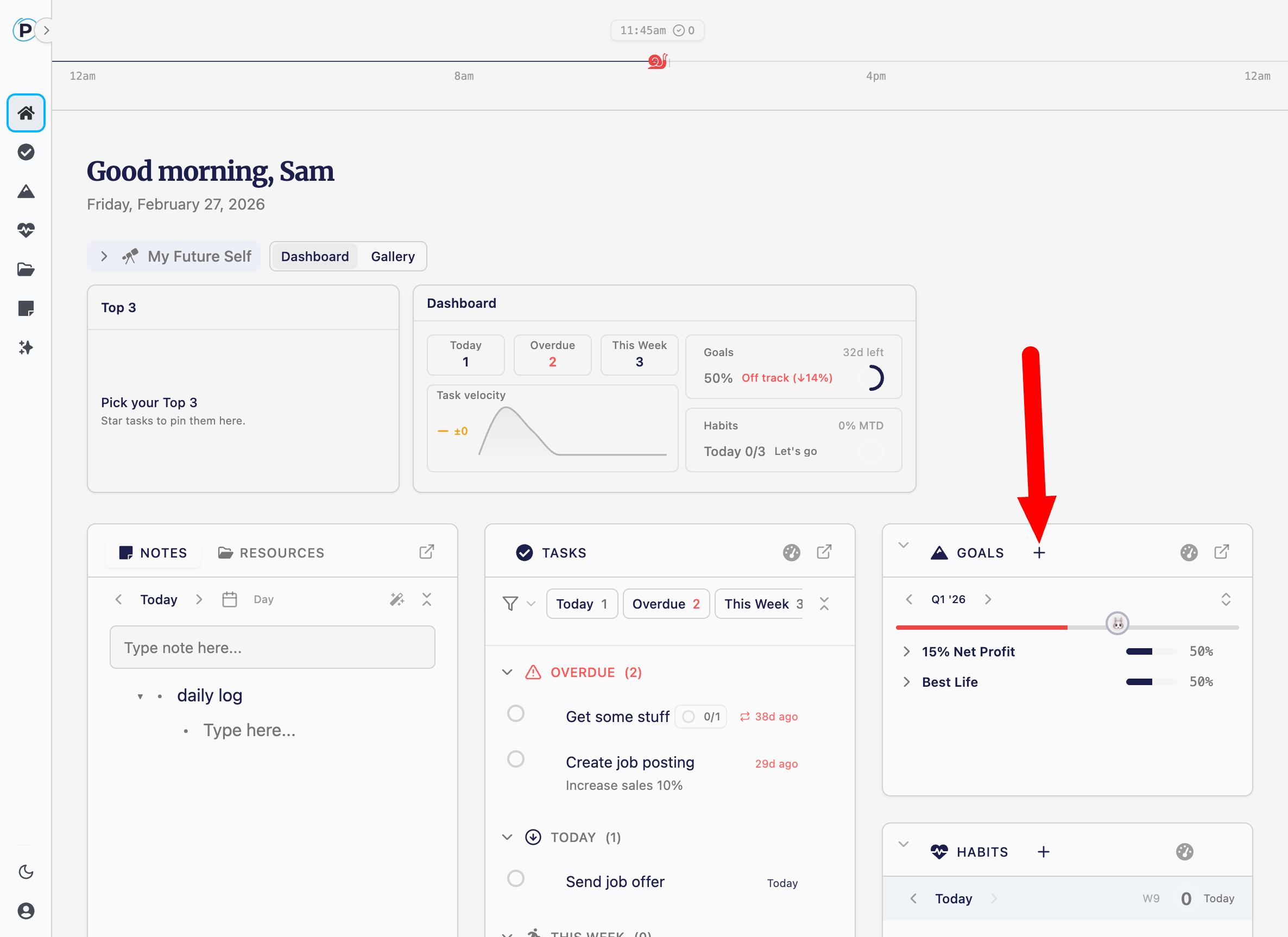
Step 1: Create Your First Goal
Goals are quarterly objectives — big-picture targets for the next 90 days.
- Go to Projects from the sidebar.
- Click "Create Goal".
- Give it a title (e.g., "Get Healthier" or "Launch Side Project").
- The quarter and year are set automatically to the current quarter.
That's it. Your first goal is on the board.
Step 2: Add a Project Under Your Goal
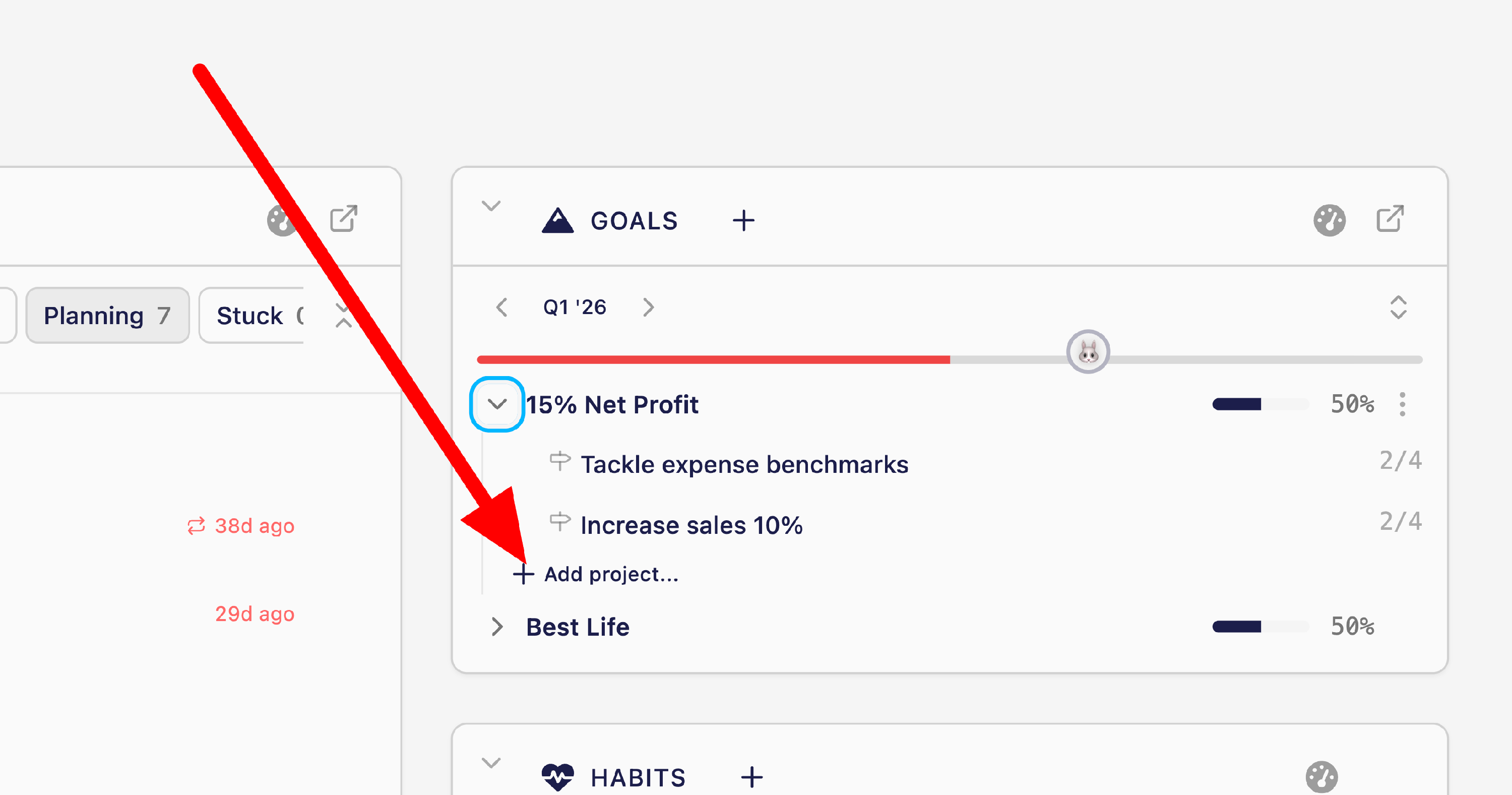
Projects are the concrete work that moves a goal forward.
- Inside your new goal column, click "Add project".
- Give it a title (e.g., "Build Landing Page" or "Run 3x per Week").
- Optionally add a purpose — a one-liner on why this project matters to you.
Your project now lives under your goal in the kanban view.
Step 3: Define Outcomes
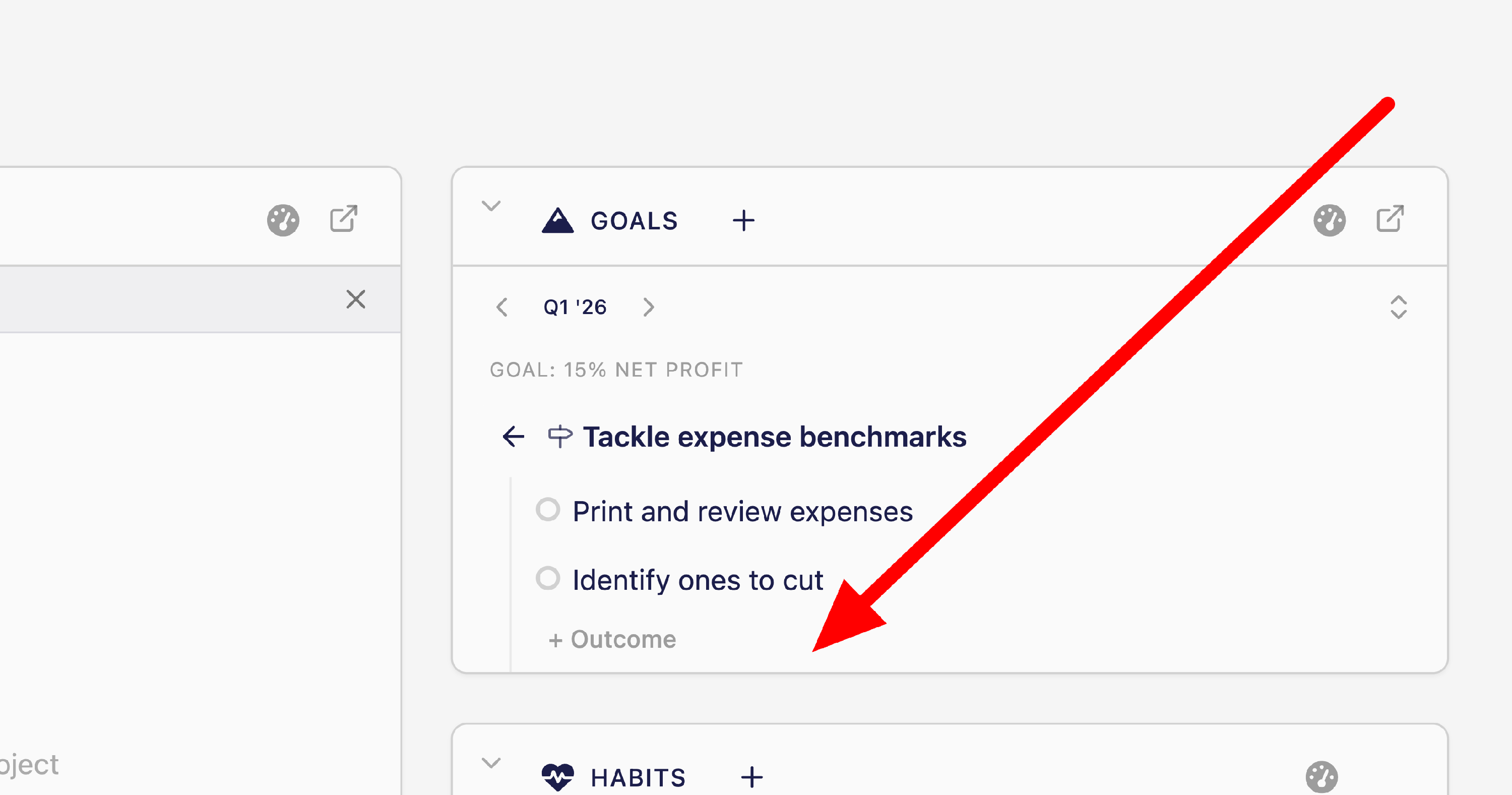
Outcomes are your Definition of Done — the specific results that mean this project is complete.
- Expand your project card by clicking it, or click the project title to open the detail sheet.
- Click "+ Outcome".
- Add 2-3 concrete outcomes (e.g., "Design homepage mockup", "Write copy", "Deploy to production").
Tip: Think of outcomes as the answer to "How will I know this project is done?" — not the steps to get there, but the results you're after.
Step 4: Create Tasks from Outcomes
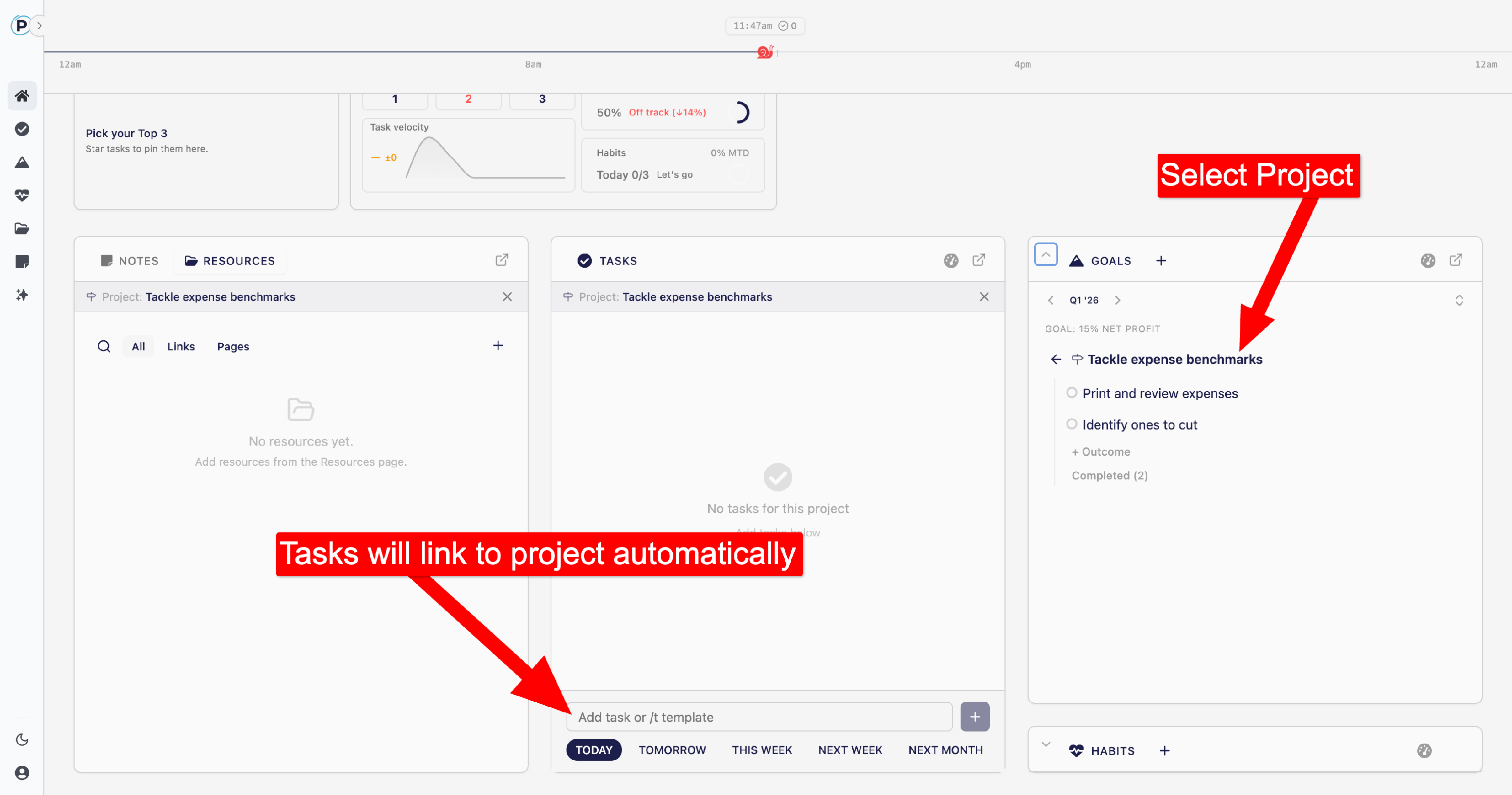
Now connect your daily work to your outcomes.
- Next to any outcome, click the task icon to create a linked task.
- The task is automatically connected to that outcome and assigned to the project.
- It gets a default due date of the end of the current week, so it shows up in your "This Week" task view.
How linked tasks work:
- Complete the task → the outcome auto-completes.
- Complete the outcome → the linked task auto-completes.
- Progress on tasks rolls up to project and goal completion percentages.
You can also create standalone tasks from the project card by clicking "+ Task" — these aren't linked to a specific outcome but still belong to the project.
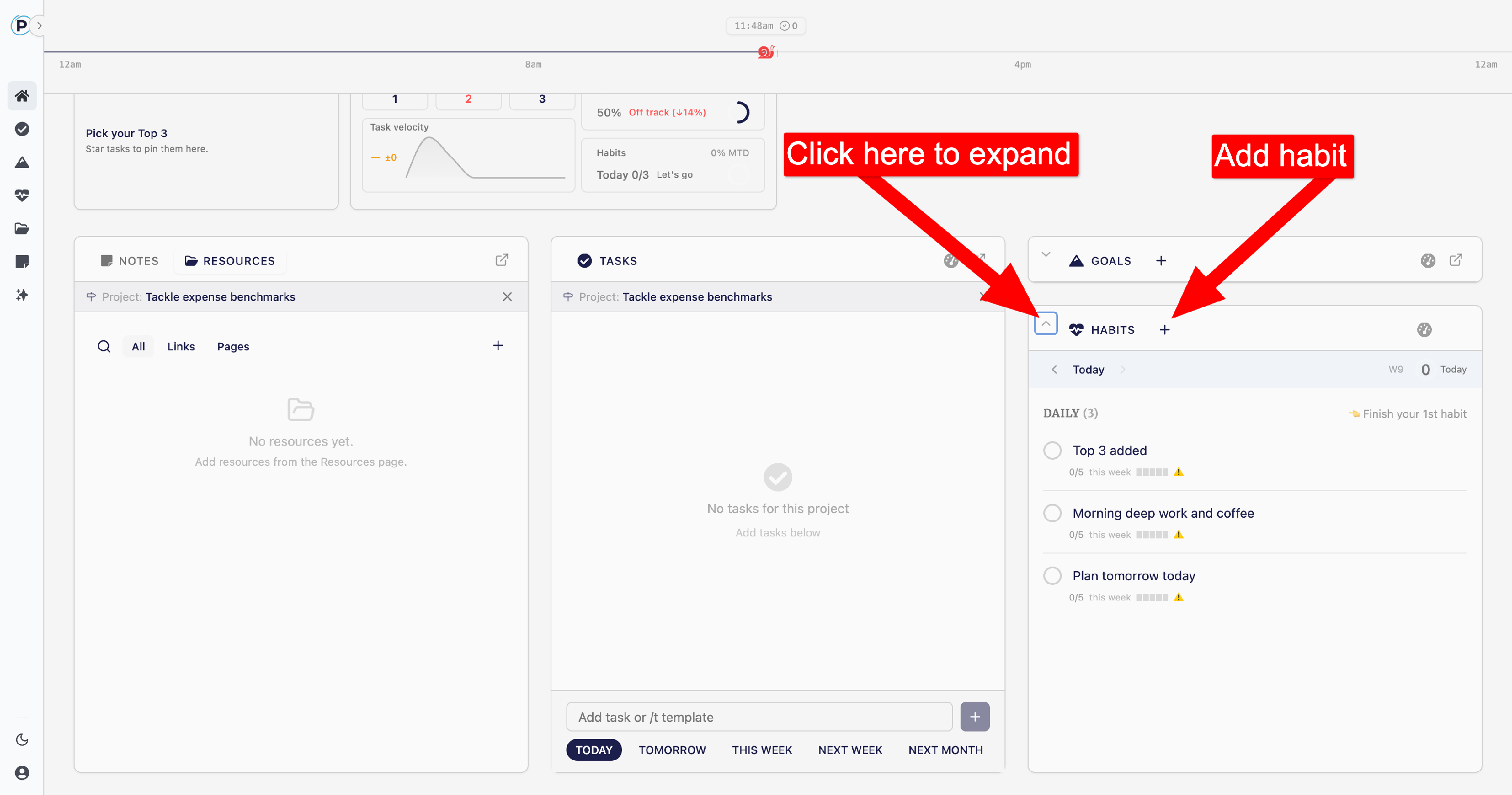
Step 5: Add Your First Habit
Habits are the daily and weekly rhythms that keep you consistent.
- Go to Habits from the sidebar.
- Click "Add Habit".
- Give it a title (e.g., "Read for 30 minutes" or "Morning workout").
- Choose a type:
- Simple — a yes/no checkbox (did you do it today?).
- Metric — a number with a target (e.g., 30 minutes, 8 glasses of water).
- Set your weekly target (how many days per week you want to hit this habit).
Your habit now appears on the Habits screen and in the Home dashboard widget. Check it off each day to build your streak.
Step 6: Try the Project Drill-Down
See everything about a project in one place.
- Go back to Projects.
- Click on your project title to open the detail sheet.
- Inside, you'll find:
- Outcomes — your Definition of Done checklist.
- Tasks — grouped by status (Overdue, Today, Active, Someday, Completed).
- Notes — a rich text area for project-specific notes.
- Resources — linked documents, URLs, and references.
- Priority — set P1, P2, P3, or on-hold.
- Tags — organize and filter across the app.
This is your project command center. Everything you need is in one sheet.
What Happens Next Quarter?
Goals and projects are automatically organized by quarter. You don't need to think about this now, but when the quarter ends:
- A banner appears if you have incomplete work.
- Click "Continue Work" to carry forward unfinished projects to the next quarter.
- Only incomplete outcomes migrate — completed work stays in the original quarter as a record of what you accomplished.
- You can also extend projects when creating a new goal by choosing "Extend Current Projects" and selecting what to carry forward.
This means you never lose progress and you always start each quarter with a clean, focused set of goals.
You're Set
You now have:
- A goal for the quarter
- A project with defined outcomes
- Tasks linked to outcomes and showing up in your weekly view
- A habit tracking your daily rhythm
From here, check your Home dashboard each morning for a snapshot of today's tasks, habits, and goals. Use Notes to capture ideas throughout the day. Save useful links and documents to Resources.
Next Steps
- Goals & Projects Overview — Learn about priorities, zen mode, and quarterly planning in depth.
- Notes Overview — Master the outliner with keyboard shortcuts and date navigation.
- Chrome Extension — Install the side panel to manage tasks and save resources without leaving your tab.