Notes Overview
What It Is
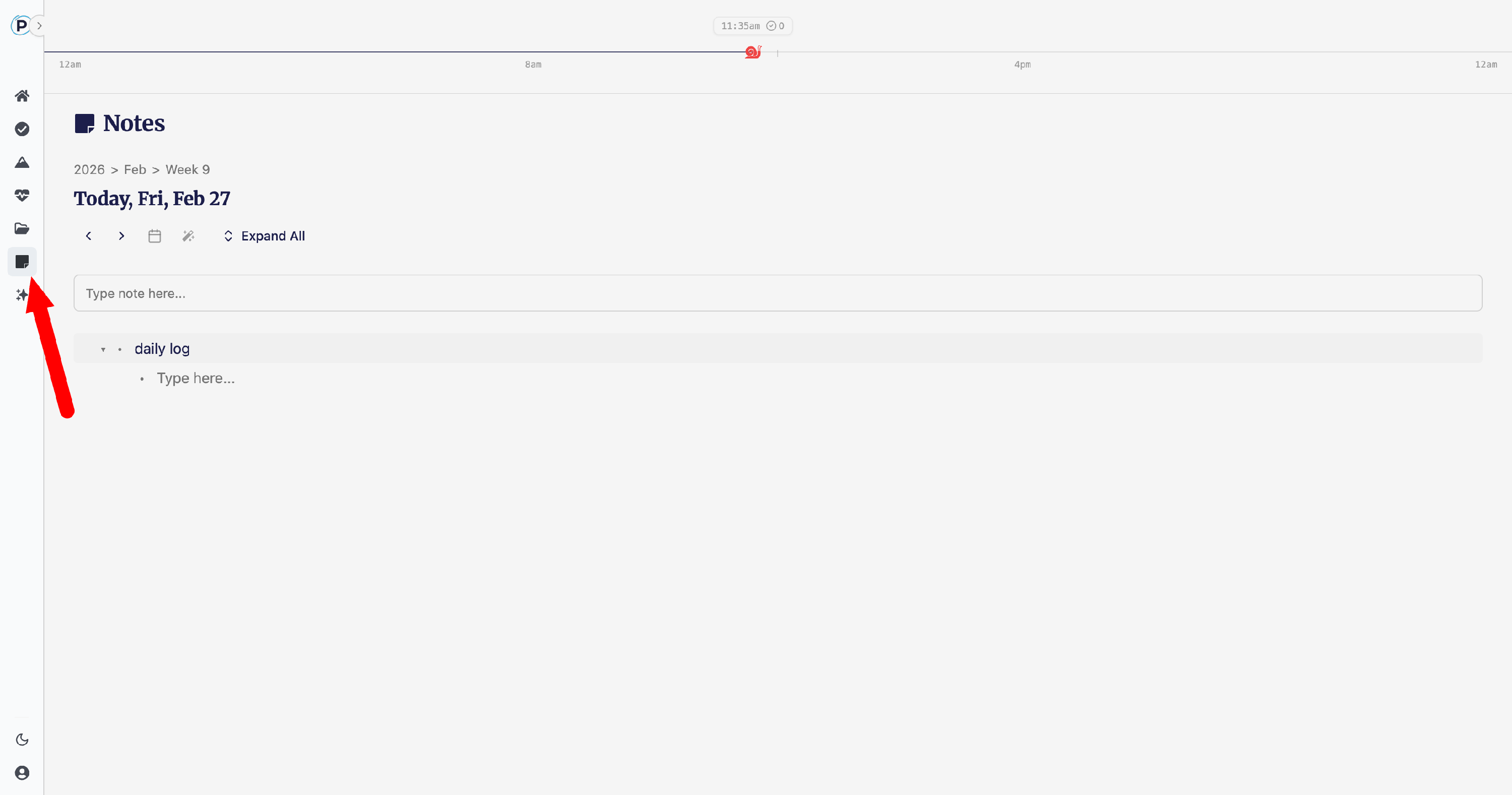
Notes is your daily capture and thinking tool — a fast, keyboard-driven outliner that organizes your thoughts by date and lets you nest ideas as deep as you need.
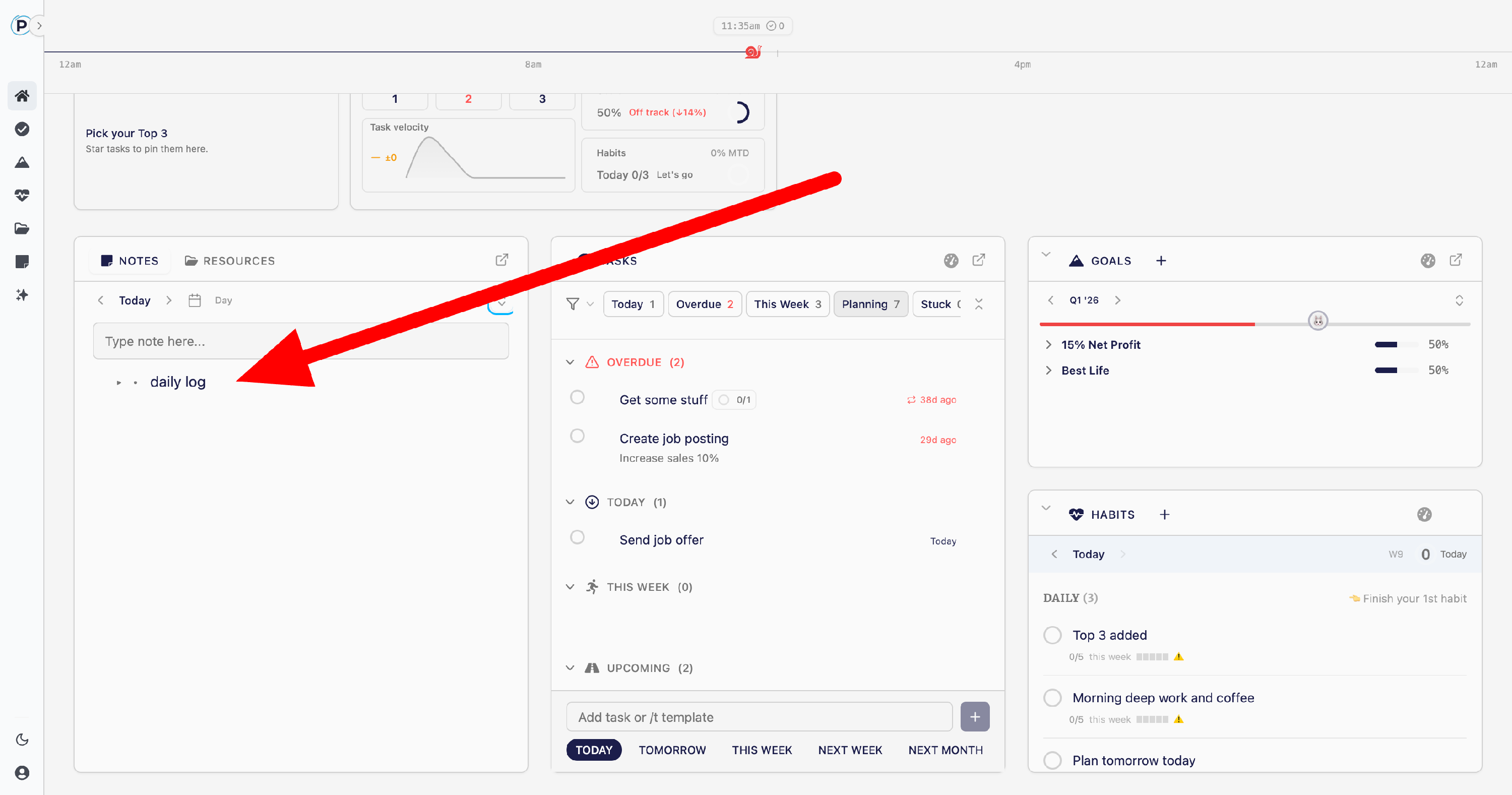
Visit from main dashboard
Visit from main Notes page
Use notes in Chrome Extension

Why It Matters
Most productivity systems lose the small stuff: the quick thought during a meeting, the idea you had on a walk, the thing you need to remember next Tuesday. Notes gives you a single place to capture everything, organized by date, so nothing falls through the cracks. Over time, your notes become a searchable journal of your thinking.
Key Concepts
- Date Buckets — Every note belongs to a specific date. Today's notes live under today's date. You can also capture notes for future dates (a built-in tickler system).
- Nested Hierarchy — Notes can be indented up to 3 levels deep. Use nesting to group related thoughts, break down ideas, or add detail under a top-level note.
- View Modes — Switch between Day, Week, Month, and Year views. Day shows a single date's full outliner. Week and Month show multiple dates grouped into collapsible sections.
- Bullet Journal Templates — One-click daily templates with pre-filled categories (Gratitude, Goals, Tasks, etc.) to give your day structure.
- Optimistic Saving — Every change saves automatically. No save button, no lost work.
What You Can Do
Capture
- Type in the input field at the top and press Enter to create a new note.
- Press Enter inside any note to create a new one directly below it.
- Place your cursor in the middle of a note and press Enter to split it into two notes.
- Click the wand icon to generate a bullet journal template for today.
Organize
- Press Tab to indent a note (make it a child of the note above).
- Press Shift+Tab to outdent a note (move it back up a level).
- Drag and drop notes by their bullet to reorder. Parent notes move with all their children.
- Use Cmd/Ctrl+Click or Shift+Click to select multiple notes for bulk actions.
Navigate
- Use the arrow buttons or breadcrumb trail to move between dates.
- Click the calendar icon to jump to any date — dots show which dates have notes.
- Click Today to snap back to the current date.
- Use Arrow Up/Down keys to move between notes without touching the mouse.
Edit & Delete
- Click any note to edit it inline. Changes save automatically when you move on.
- Press Backspace on an empty note to delete it.
- Select multiple notes and press Delete to remove them all at once.
Tips & Shortcuts
| Action | Shortcut |
|---|---|
| New note below | Enter |
| Indent (nest deeper) | Tab |
| Outdent (un-nest) | Shift+Tab |
| Move between notes | Arrow Up / Down |
| Select all notes | Cmd/Ctrl+A |
| Multi-select | Cmd/Ctrl+Click |
| Range select | Shift+Click |
| Delete empty note | Backspace |
| Clear selection | Escape |
Pro tip: Use future date buckets as a tickler file. Capture a note under next Monday's date and it'll be waiting for you when you get there.
Pro tip: On mobile, a floating toolbar appears when you tap into a note — use it for indent, outdent, add, and delete without needing a keyboard.
Related Features
- Tasks — Capture action items in Notes, then create formal tasks when they're ready to be tracked.
- Goals & Projects — Use Notes to brainstorm project ideas or reflect on quarterly goals.
- Resources — Save important notes as resources for long-term reference.
- Home Dashboard — The Notes widget on your home screen gives you quick capture without leaving the dashboard.