Perfect Week Chrome Extension
What It Is
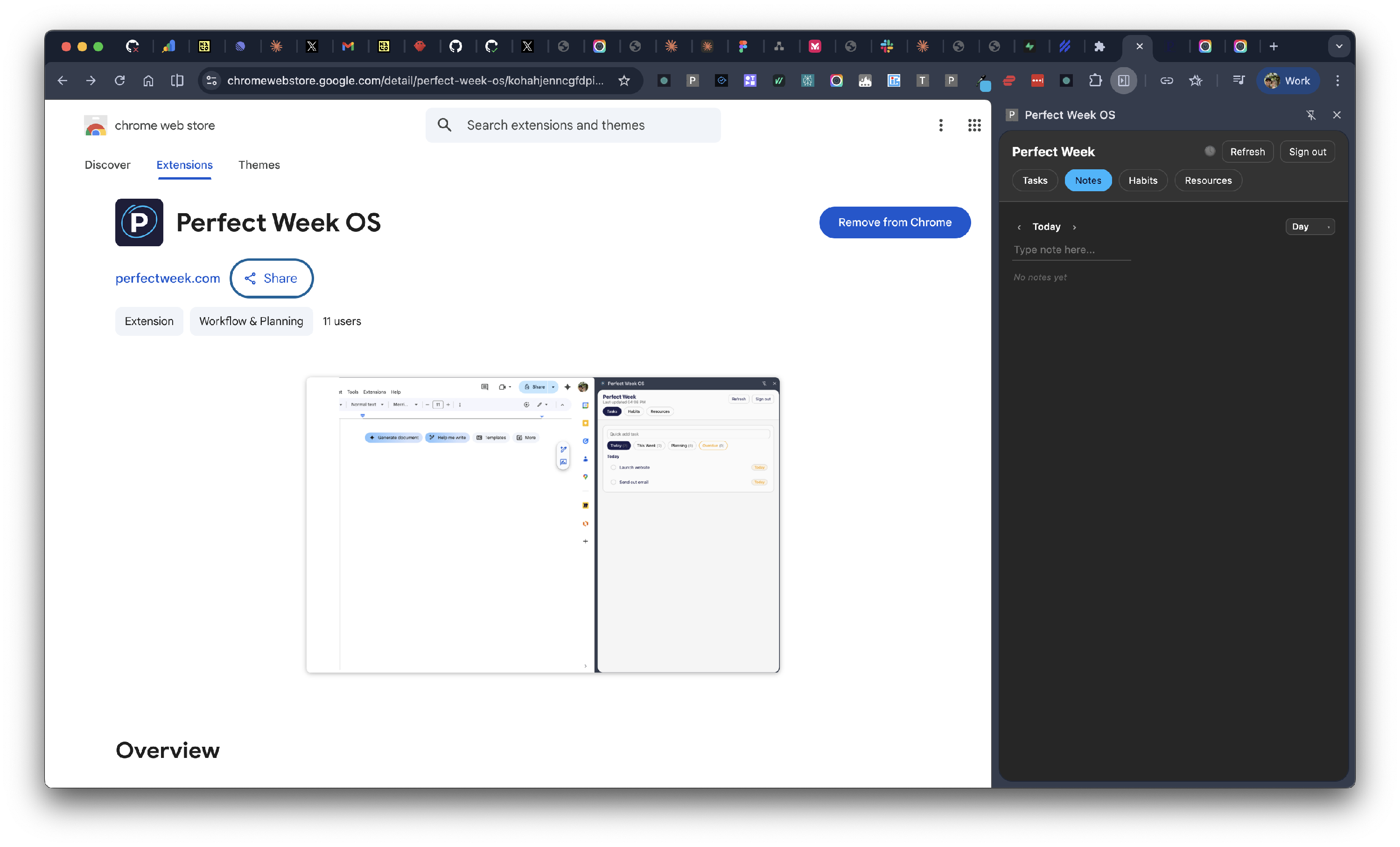
The Perfect Week Chrome Extension is a side panel that gives you instant access to your tasks, habits, notes, and resources without leaving the page you're on.
Why It Matters
Context switching kills focus. Every time you leave your current tab to check a task or log a habit, you lose momentum. The side panel keeps Perfect Week one click away — manage your day, capture ideas, and save resources from any webpage without breaking your flow.
Install
Install Perfect Week OS from the Chrome Web Store
After installing, click the Perfect Week icon in your browser toolbar to open the side panel. Sign in with your existing Perfect Week account.
Key Concepts
- Side Panel — The extension opens as a panel on the right side of your browser. It stays open as you browse, so you can reference your tasks and notes alongside any webpage.
- Same Account, Same Data — The extension uses your Perfect Week account. Everything you see and change in the side panel syncs to the main app and vice versa.
- Auto-Grab — When you switch to the Resources tab, the extension automatically captures the title and URL of your current tab, ready to save.
- Offline Mode — If you lose your connection, the extension displays cached data and disables edits until you're back online. No data loss.
What You Can Do
Tasks
- Quick add a task from the input field at the top of the Tasks tab.
- Filter by Today, This Week, Planning, or Overdue to focus on what matters now.
- Complete tasks with a single checkbox tap.
- Reschedule by clicking the due date pill — pick Today, Tomorrow, This Week, Next Week, or a custom date.
- Edit titles inline by clicking on any task.
- See project context — each task shows its project badge so you know where it fits.
Habits
- View all habits grouped by frequency: Daily, Weekly, and Monthly.
- Toggle simple habits with a checkbox.
- Log metric habits (e.g., "30 mins reading") by entering a value.
- Incomplete habits sort to the top so you see what's left.
Notes
- Capture notes from anywhere — type a thought and press Enter.
- Browse by date using Day, Week, Month, or All view modes.
- Nest ideas with indent and outdent to organize your thinking.
- Navigate dates with the date picker to review past notes or plan ahead.
Resources
- Save the current page — the extension auto-fills the title and URL from your active tab.
- Add tags with autocomplete from your existing tag library.
- Assign to a project using the project dropdown.
- Re-grab — navigated to a new page? Hit Re-grab to update the title and URL.
Tips
- Pin the extension to your toolbar for one-click access. Right-click the puzzle piece icon in Chrome and pin Perfect Week OS.
- Save as you browse — found a useful article? Switch to the Resources tab, add a tag, and save. Takes 3 seconds.
- Morning routine — open the side panel, check your Tasks (Today filter), log your Habits, and you're set without ever opening a new tab.
- Data refreshes automatically every 5 minutes, or hit the refresh button in the header to sync immediately.
Troubleshooting
- Panel won't open? Make sure you're signed in. Click the extension icon and check the sign-in screen.
- Data looks stale? Click the refresh icon in the top-right corner of the panel.
- "Offline mode" banner? Check your internet connection. The extension disables edits when offline to prevent data conflicts.
- Can't save a resource? Make sure at least a title or URL is filled in before saving.
Related Features
- Tasks — Full task management in the main app with Kanban views, delegation, and recurring tasks.
- Notes — The full outliner experience with drag-and-drop, multi-select, and bullet journal templates.
- Habits — Detailed streak tracking and analytics in the main app.
- Resources — Advanced resource management with rich text pages, search, and project linking.